

Ai
BoostYour Design Efficiency Using Scripts for Adobe Illustrator
Adobe Illustrator scripts
boost efficiency, automating tasks like text splitting, object alignment, and color adjustments—saving time and enhancing creativity for designers.

Scripts
MultiLine Magic
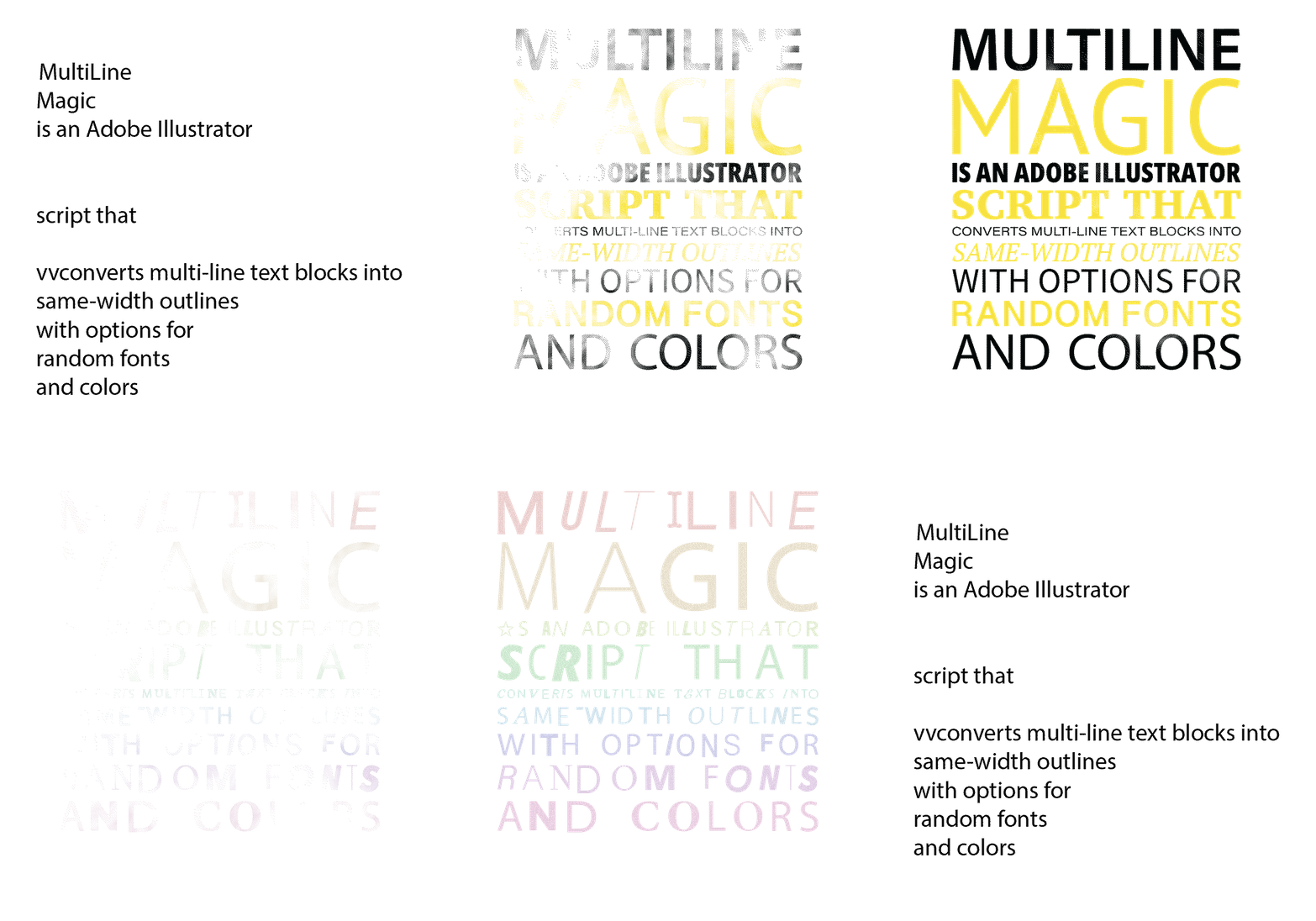
This Adobe Illustrator script converts multi-line text blocks into same-width outlined text, with options for random fonts and colors.
Ultimate Illustrator Toolkit
Level up your Illustrator workflow: evenly distribute, rotate, resize, and shade objects effortlessly with this ultimate toolkit script.
mlm

MultiLine
Magic
This Adobe Illustrator script converts multi-line text blocks into same-width outlined text, with options for random fonts and colors.
Transform your text into eye-catching art with one click—get the Adobe Illustrator script that brings your designs to life!
The Problem: Multi-line Text Management
Designers frequently encounter situations where they need to manipulate individual lines within a text block. Whether it's for creating dynamic layouts, applying different effects to each line, or ensuring precise spacing control, the ability to quickly separate a text block into individual lines can significantly streamline the design workflow.
Traditional methods of manually copying and pasting each line are:
- Time-consuming and prone to errors
- Difficult to maintain consistent formatting
- Challenging when dealing with large amounts of text
- Inefficient for repetitive tasks
The Solution: Automated Text Splitting Script
MultiLine Magic script offers an elegant solution to this challenge.
Here's how it works:
Core Features
- Automatically splits multi-line text into a full-width block
- Option to preserves original font and color
- Precise spacing
- Handles empty lines intelligently
- Requires minimal user interaction
Benefits and Applications
The script provides several advantages for different design scenarios:
Design Workflow Improvements
- Reduces repetitive manual tasks
- Maintains design consistency
- Increases productivity
- Minimizes potential errors
Practical Applications
- Creating dynamic typography layouts
- Preparing text for animation
- Developing complex text arrangements
- Generating specialized text effects
Best Practices for Script Usage
To get the most out of the text-splitting script, consider these recommendations:
Preparation
- Save your work before running the script
- Select only one text frame at a time
Execution
- Run the script with a single text frame selected
- Adjust the desired width and the space between lines
- Select font options (keep original, random for each line, random for each letter)
- Select color options (keep original, add desired colors, Pastel pallette)
- Check the results for any necessary adjustments
- Use undo if the result isn't what you expected
uit

Ultimate Illustrator
Toolkit
Level up your Illustrator workflow: evenly distribute, rotate, resize, and shade objects effortlessly with this ultimate toolkit script.
Transform your objects into eye-catching art with some clicks—get the Ultimate Illustrator Toolkit script that brings your designs to life!
Unlocking the Power of the Ultimate Illustrator Toolkit: A Designer’s Tool for Object Manipulation
Adobe Illustrator’s extensive toolset is beloved by designers worldwide, but repetitive tasks can make intricate designs time-consuming. Whether you need to resize multiple objects uniformly, distribute them evenly, or apply consistent shades across selected elements, this comprehensive Illustrator toolkit can make these tasks efficient and enjoyable. This article explores how using a script to automate these functions can elevate your design workflow, letting you focus on creativity rather than manual adjustments.
The Problem: Manual Adjustments for Multiple Objects
Imagine creating a complex layout where dozens of shapes need precise positioning and color control. Traditionally, Illustrator users would need to manually adjust each object, applying uniform rotations, adjusting fill or stroke shades, and making spacing corrections. This process can quickly become overwhelming, especially when dealing with hundreds of objects. Manual adjustments, while precise, are:
- Time-Consuming – Selecting and altering each object individually eats into valuable design time.
- Prone to Inconsistencies – Even slight manual errors can lead to uneven spacing or size differences.
- Difficult for Complex Layouts – Positioning objects into columns or resizing them uniformly without automated assistance can disrupt workflow.
- Inefficient for Large Projects – When working with large compositions, these manual tasks can feel like endless hurdles.
The Solution: A Unified Illustrator Toolkit
This Ultimate Illustrator toolkit script combines various time-saving features to make object manipulation fast, consistent, and customizable. With it, you can quickly distribute objects into neat columns, apply uniform or random rotations, adjust spacing, or change colors with precision. Below are some of the most exciting features this script brings to Adobe Illustrator.
Key Features of the Illustrator Toolkit Script
- Uniform or Random Rotation
Easily apply a uniform rotation across selected objects or set them to rotate randomly within a specified range. This is particularly useful when creating dynamic or scattered layouts, ensuring that each element has its unique orientation without manual adjustments. - Object Distribution in Custom Columns
When working with a grid or column-based layout, the script can distribute selected objects into the desired number of columns. This ensures even spacing and alignment across rows, which is invaluable for creating organized patterns or multi-column layouts in posters and infographics. - Consistent Object Sizing
Resize all selected objects to have the same height or width while maintaining their aspect ratios. This feature is incredibly helpful when creating uniform designs where every object needs to be scaled to a consistent size. - Color Control with Shades
The toolkit allows designers to change the fill or stroke color of selected objects, applying up to 10 shades of a chosen base color. This feature makes it easy to create gradients or color transitions, adding depth and variation without having to manually adjust each object’s color settings. - Spacing Adjustment
Adjust the spacing between selected objects to achieve perfect alignment and flow. Whether you need closer spacing for a compact design or wider gaps for readability, this script handles it with precision.
How the Illustrator Toolkit Script Works
The toolkit script involves several steps to achieve seamless manipulation of objects in Adobe Illustrator:
Rotation Handling
- Uniform Rotation – Apply a single rotation angle across all selected objects.
- Random Rotation – Apply random rotations within a user-specified range, giving each object a unique orientation without manual adjustments.
Distribution into Columns
- Column Selection – Choose the number of columns desired.
- Automatic Placement – The script arranges objects into columns with even spacing, ideal for designs that require a clean, organized layout.
Resizing and Aspect Ratio Preservation
- Height/Width Adjustment – Resize all objects to a specific height or width.
- Aspect Ratio Maintenance – Ensures each object’s proportions remain intact, avoiding distortion while creating uniform sizing.
Color Shading and Application
- Base Color Selection – Choose a primary color for either the fill or stroke of selected objects.
- Shade Variation – Apply up to 10 shades of the base color, creating a gradient effect across all selected items.
uall
Ungroup
All
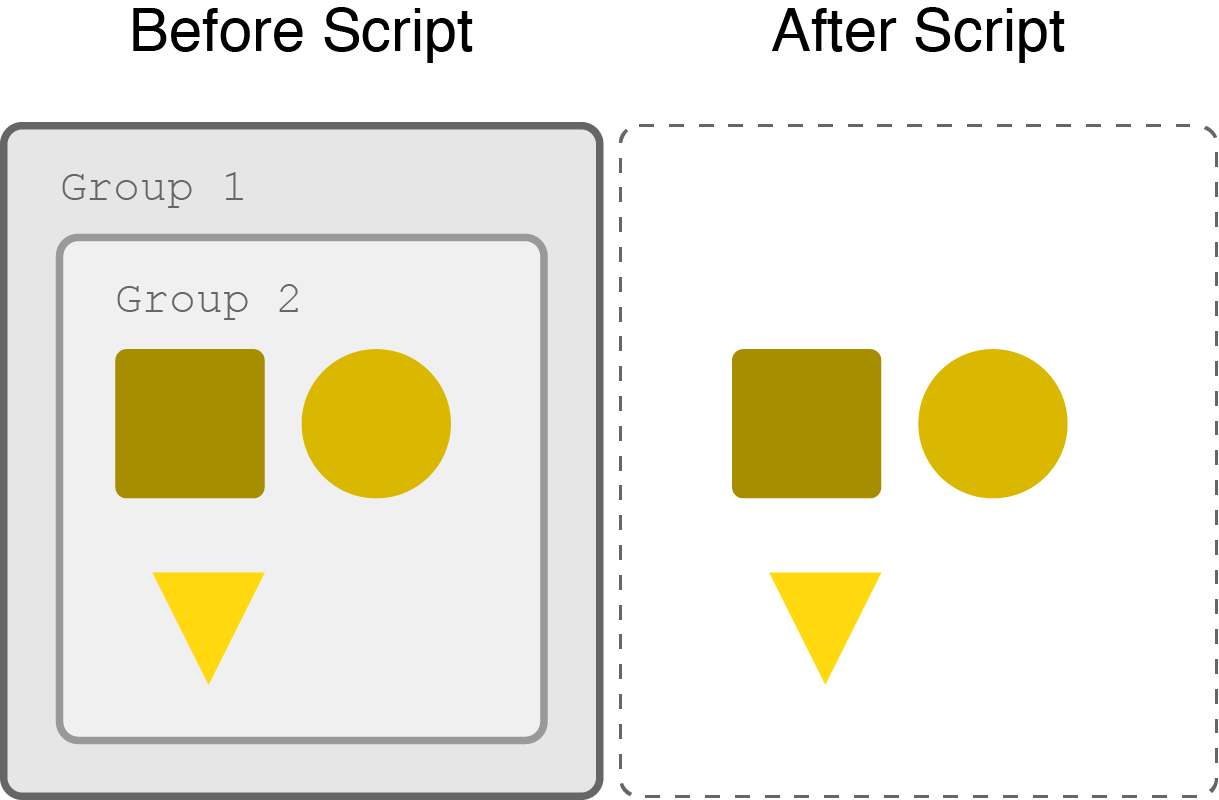
This Adobe Illustrator script provides a powerful ungrouping utility that goes beyond Illustrator’s default “Ungroup” command.
This script recursively ungroups all selected objects, including deeply nested groups.
While the standard Illustrator ungroup function only works on one level at a time, this script recursively ungroups all selected objects, including deeply nested groups and compound paths, in a single operation. When executed, it systematically processes each selected object, traversing through all hierarchy levels and breaking down both group items and compound paths into their individual components.
For designers working with complex illustrations or imported artwork that contains multiple nested groups, this script can save significant time by eliminating the need to repeatedly apply the ungroup command. It includes error handling to ensure users have selected at least one object before running, making it both robust and user-friendly. To use it, simply select any grouped objects in your Illustrator document and run the script.
Why Work With a Script?


Efficiency,
consistency,
precision,
creativity,
automation.

How to install adobe illustrator scripts?
Prerequisites
-
- Adobe Illustrator installed
- Administrator privileges on your computer
1Save the Script
- Save the script file with extension
.jsx - Recommended filename:
illustrator-toolkit.jsx
2Locate Scripts Folder
Windows:
macOS:
3Install Script
- Copy
illustrator-toolkit.jsx - Paste it into the Scripts folder
- If prompted, provide administrator permissions
4Access the Plugin
- Close and restart Adobe Illustrator
- Navigate to
File > Scripts > illustrator-toolkit
Troubleshooting
- If the script doesn’t appear, verify the file extension is
.jsx - Ensure the script is placed in the correct version folder
- Try running Illustrator as administrator
- Check file permissions are set to allow execution
Usage Tips
- Create a keyboard shortcut for quick access
- The toolkit works with any selected objects
- Each tab (Rotation, Color, Resize, Grid) operates independently
- Changes can be undone with Ctrl+Z (Windows) or Cmd+Z (macOS)